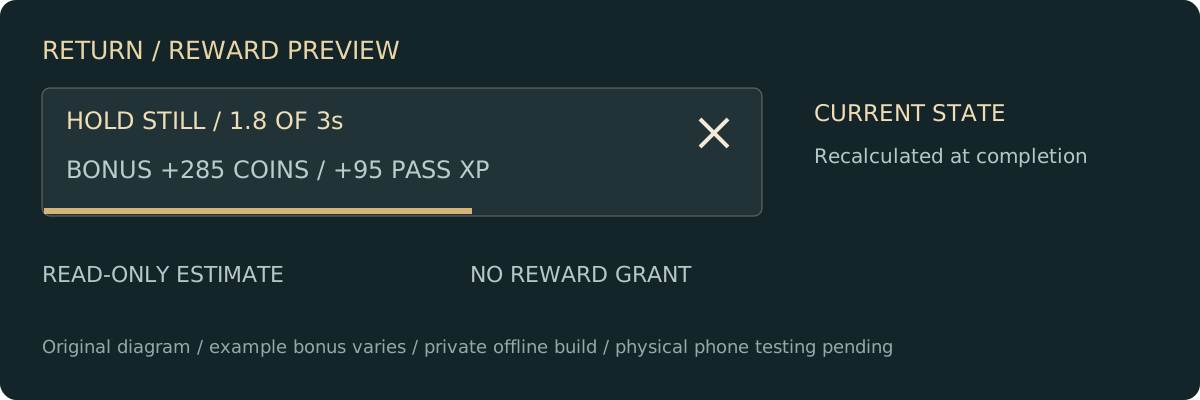
Choose Return from the compact field tools after 30 seconds of active expedition time. The existing extraction marker becomes your navigation goal. A small strip between the vitals and radar shows marker distance, a three-second hold countdown, an interruption delay or a held-state message. It appears only while return is active.
Original interface diagram, not a gameplay or physical-phone screenshot. The displayed bonus is an example and changes with run progress.
See the bonus before you commit
The active extraction strip now shows the exact current coin and prototype pass-XP bonus, including eligible unclaimed run contracts. This is a read-only estimate, not a reward grant or paid entitlement. Already-claimed contracts disappear from the estimate. Completion recalculates from current state rather than trusting an older displayed amount.
Bonus Held / Check Balance means the full bonus cannot fit within the current coin or prototype XP limits. The hold does not advance toward a payout in that state. Cancel and review your balances; no loot is spent by cancellation. Invalid quest visit masks or other malformed reward state are also held, rather than interpreted as completed exploration.
Reach the marker, then hold
Use the gold navigation marker to approach the existing extraction site. Direction is guidance, not pathfinding or a safe-route guarantee.
Stay within 1.7m horizontally and within 2m vertically of the site. The strip asks you to reach the marker level when needed.
Stand still without dashing for three seconds. Movement resets the hold; hits reset it and add the existing two-second interruption delay.
Tap the strip or its X to cancel. Cancellation grants no reward and does not spend your loot.
Rewards follow a valid save
Existing expedition and ready-contract rewards are settled through the local save. Invalid timers, movement, target positions, blocked state and active menus cannot complete extraction. A failed save keeps currency and prototype pass XP unchanged; a completed return cannot be claimed again in the same run.
Extraction Held means relevant state is invalid or blocked. Cancel return, restart to attempt local recovery, and contact support if it persists. The status display does not grant rewards or bypass the checks.
Return requires reaching the marker; it does not teleport you from the wilderness. The private build remains offline, test-signed and purchase-disabled. Physical-device acceptance and production release checks remain pending.
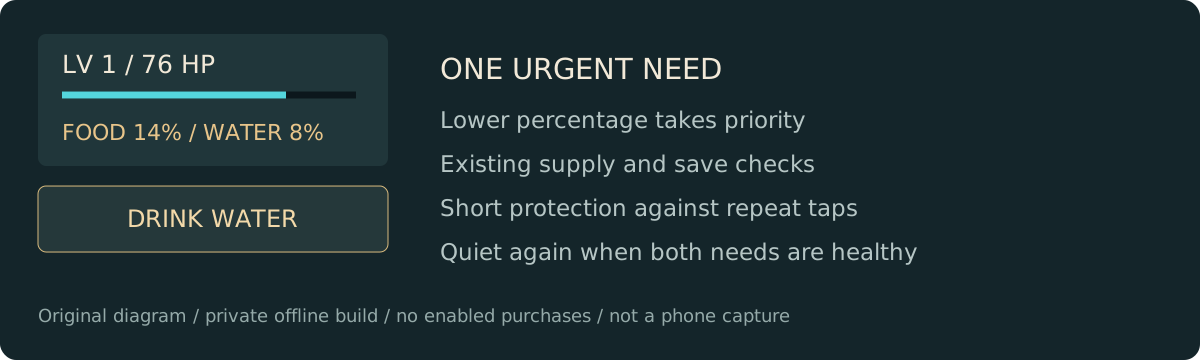
The field stays quiet when food and water are above 30%. At 30% or lower, one 44-unit-high shortcut appears below your vitals. The lower percentage takes priority; water wins a tie. Existing supplies are used with their normal capped benefits and local save checks.
Original interface diagram, not a gameplay or phone screenshot.
Act without hunting through tabs
Drink Water uses one clean water when hydration has priority.
Eat Ration uses one crafted ration when food has priority.
Forage Snack starts the existing stationary snack only with at least three forage and no ration. Threat, movement and cancellation checks still apply; beginning spends nothing.
Need Water / Supplies or Need Food / Supplies opens the existing workshop review. It does not create supplies or craft remotely.
Keep control of your supplies
A short repeat-tap guard prevents a double tap from immediately spending a second, different provision as priority changes. The shortcut hides while the tools drawer or other menus are open. Cancel Snack interrupts the channel and keeps unconsumed forage.
Supplies Held means invalid or blocked local state was detected. The shortcut refuses use; restart to attempt local recovery and contact support if it persists. A rejected local save restores the existing provision and need values.
Ground rings, loot aura glow and tall loot beams remain removed. Ordinary rarity-colored collectible cores and minimap guidance remain. Earlier screenshots elsewhere in this guide show historical private interfaces; they are not current phone-performance evidence. This remains a private, offline test build with purchases disabled.
New in 4.80: the urgent shortcut previews its current effect and carried quantity, such as +45 WATER / 3 IN PACK. Rations preview up to +35 food. Forage shows the three-forage cost and three-second stationary preparation; an empty supply opens the workshop with no automatic spend. The line is hidden when needs are healthy or the supply state is held.
Current interface / private Android 4.80.0
More wilderness. Less clutter.
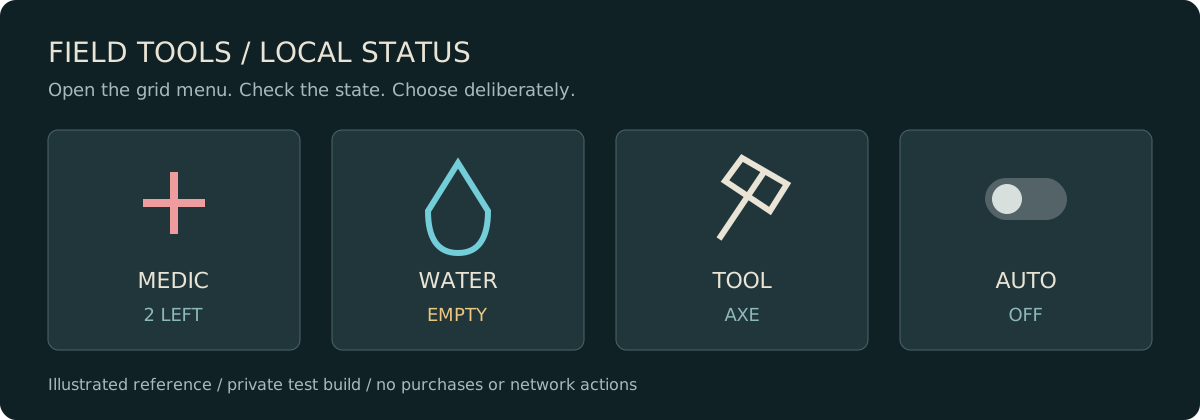
Player and object ground rings, loot aura glow and the large tab row are removed. Health, food and water stay at the top left; a smaller radar keeps objective, threat and recovery guidance. Combat controls stay available, while the grid-shaped Menu button above movement opens secondary tools.
Original control diagram, not a gameplay or phone screenshot.
Know what a tap will do
Pack, Gear, Squad, Build, Journal, Return and Hub open existing routes, equipment, management and story workflows.
Quiet, Survey, Filter, Auto and Tool show their current state or active tool. These controls do not buy anything.
Food, Water and Medic show local quantities. Empty food may offer the existing forage action; empty water or medicine grants nothing.
Held means invalid data was detected. The action is refused; restart to attempt local save recovery and contact support if it remains.
Keep the field clear
Tap Menu again or tap outside to close it. A tap on Fire while the group is open dismisses the group without firing; a subsequent touch can hold Fire normally. Hidden old buttons do not consume supplies.
Heal appears when relevant. In the field it starts or cancels the existing stationary bandage action; near Home it uses quick medicine. Gather appears by an eligible resource. Existing range, threat, material and save guards still apply.
Read recovery without wasting it
Coral crosses indicate healing. Nearby recovery cards show the next restoration amount and the valid HP reserve within 20m. A partially used pickup retains its remainder for later in the same run. At 40% health or less, a coral radar bearing points toward the nearest eligible recovery pickup; gold still indicates the objective. A bearing is direction information, not pathfinding or a safe-route promise.
This is a private offline test build. No public Google Play availability or enabled paid purchase flow is represented here. Desktop native UI checks passed; current physical-device touch, lifecycle and performance acceptance remain pending.
Free combat choices / private build 4.44
Choose your field discipline.
Open Inventory → Field Armory → Combat Disciplines. Ward Pulse and Breach use the same Pulse button and shared cooldown. The choice persists across expeditions for this app session, then resets to Ward Pulse when the app closes. It changes no inventory, purchase entitlement or saved-profile field.
◎
Ward Pulse
Defensive / radial
2× current carbine damage within 4.2m.
Strong pushback and a two-second attack interruption.
Clears nearby hostile projectiles.
A useful escape when surrounded.
⋗
Breach
Offensive / aimed cone
3× current carbine damage within a 6.8m, 70-degree cone.
Aims at the nearest visible alerted enemy; cover blocks each hit.
Light pushback and a 1.2-second interruption.
Incoming projectiles remain dangerous.
No clear alerted target means Breach keeps its cooldown. Both disciplines exclude idle enemies and share the ten-second base recharge and its existing upgrades. You cannot switch while the ability is recharging or its effect is active. Menus pause recharge: return to the field, let it finish, then reopen the selection. A successful cast cancels bandaging and retains the unconsumed medwrap.
Optional relay trial / one attempt per expedition
Answer the Black Signal.
Rowan hears something repeating Haven's distress call. Keep the carrier open through three escalating waves so the next convoy can find its way home. This is a free open-world encounter at existing relay sites, not a separate dungeon or new map.
Approach an unused relay within 3.5m with the carbine selected. Choose Review Black Signal, read the briefing, then Confirm / Three Waves. Review alone spends no attempt.
Defeat 3 responders, then 4 reinforcements, then the Hollow Marshal, a named elite using the existing brute model and charge telegraph. Read the windup and use cover and Dash. A 2.5-second active-play break separates the waves after nearby threats clear.
After the final defeat, clear the area and decode within 6.5m for 18 active seconds. Approach within 3.5m to choose Recover or Recharge.
Claim the normal field benefit and three times the normal relay run XP. Enemy drops use the existing loot rules; no specific item or rarity is guaranteed.
The ordinary three-responder relay remains an alternative. Both modes share one attempt per relay this expedition. Leaving more than 15m away or confirming withdrawal consumes that attempt. A new expedition resets attempts. Menus, pause and upgrades freeze the trial; nearby threats can delay decoding. A responder disappearing without an actual defeat stops the trial instead of awarding completion.
Keep your attempt deliberate
New in private 4.45: within 3.5m of an unfinished active relay, choose Review Withdrawal. The first tap keeps the encounter active. Tap Confirm / Lose Attempt to abandon it, or Keep Fighting to dismiss the review.
The review expires after eight active-play seconds without abandoning the encounter. Combat continues during this review. Opening a menu, pausing, backgrounding, leaving the 3.5m interaction radius, completing decoding or starting another expedition clears it. Walking beyond 15m still abandons the encounter automatically.
Read the carrier
Three slim segments show cleared waves and defeats in the current wave. After the elite falls, the bar becomes the existing decode progress. The range line shows distance to the relay: stay within 6.5m to decode, and heed the warning beyond 12m before the 15m abandonment limit.
These are status displays, not safe-route promises. The review and status display add no saved field, resource reward, purchase or analytics.
Wave state, review, attempts and decoding are temporary expedition state. Existing earned enemy loot uses the normal local save. There is no entry fee, purchase requirement, extra profile field, analytics or network permission.
Controlled desktop-engine withdrawal fixture from the private 4.45 build. This is a gameplay render, not an Android device screenshot or a new dungeon environment.
New in private 4.46 / capped reward forecast
Know what the relay gives you.
After decoding, approach within 3.5m. HP / + shows the health that fits now, up to 35. Shield / + shows the shield that fits now, up to 15; this Recharge choice also readies Dash and Pulse. These are alternative benefits, not a bundle.
The shared caption shows run XP for either choice, including the current relic bonus. Full meters may show +0 while XP remains available. Values are rounded to one decimal place for display. For example, at 97.5 of 100 HP, Recover gives 2.5 HP; at 58 of 60 shield, Recharge gives 2 shield. Existing trial XP and enemy-loot rules are unchanged.
Viewing spends nothing and reserves nothing. Claiming checks current health, shield, cooldowns, run state, threats, range and save readiness again. Changed or invalid state can hold the reward. A claimed relay cannot pay again. The display adds no currency, paid entitlement, saved field or analytics.
Controlled desktop-engine fixture from private 4.46: full health shows +0.0 HP, shield at 58/60 shows +2.0, and either choice awards the displayed run XP. This is not a physical Android screenshot.
Move, aim and choose when to fire
Drag the left stick to move and hold the Fire control with another finger to fire. Release Attack to stop manual fire. On desktop, F also fires. Auto Attack is optional and defaults to Off each expedition. Both modes select alerted enemies using the existing range and cover checks; they do not select idle groups.
Tap an alerted enemy to focus it. Defeats charge Overdrive; at 100%, activate it near a threat for six active seconds of faster carbine fire. Opening a menu pauses the world and clears held attack input. Tapping faster does not bypass the weapon cooldown.
Read the Haven Library
Open Story Library from the title screen, any main menu, or The Last Signal journal. Choose Short / Field Tales or Long / Chronicles. Six complete stories are included in each category. Previous and Next Page navigate; Text cycles three sizes; Focus Reading widens the page.
Page positions, text size, focus view and read marks last for this app session only. They reset when the app closes. Mark Read is available on the last page and grants no coins, XP, gear or paid entitlement. Reading and closing the library leave the gameplay save unchanged.
These original, AI-assisted fictional stories include non-graphic peril, loss and recovery. They expand the setting and are not extra playable campaign acts. Read all twelve stories on the website.
New in 4.38: Survivor Voices. In Story Library, select Survivor Voices for eighteen written scenes with Mira, Blake and Rowan. Read the current page, then choose a reply. Restart Talk reopens that survivor's introduction without clearing this session's heard marks. Related-story replies return to the library. No recruitment, relationship score, quest, resources, rewards or paid progression change. Scene choices and heard marks reset when the app closes.
Reading workflow: Next Unread advances to another story you have not marked read; when all twelve are marked it keeps the current selection. Same Survivor cycles through stories featuring the current character. Previously stored session page positions resume when you return. Marked read means a self-selected status, not verified reading.
First expedition
Gather wood, stone and fiber near Home.
Use an axe for trees and a pickaxe for stone.
Build a crafting bench to unlock upgrades.
Upgrade to a stone pickaxe before harvesting iron.
Build a forge for advanced equipment.
Travel and your squad
Recruit Mira at Home, Blake at Pine Reach and Rowan at Stone Ridge within 3 metres. Follow mode fights alerted enemies; Home workers gather, repair and assist building.
Retreat from threats before travel or maintenance. The planner explains blocked departure. Treat wounded survivors within 3 metres for 4 fiber, restoring up to 40 HP.
Keep your save
Install updates over the existing app. Clearing storage or uninstalling deletes progress. The current game has no cloud backup.
If saving is blocked, stop making transactions and restart the game to attempt recovery from its local backup. Do not clear app storage to troubleshoot a save you want to preserve.
Report a problem
Include app version, phone model, Android version, steps to reproduce and whether the problem happened before or after an update. Screenshots are optional.
Remove personal details. Never send passwords, payment data or account codes.
Support email is reviewed as capacity allows; including the details above helps us reproduce the problem on the first reply.
Each storage card shows To Home, Reserved and Overflow. To Home is the amount that fits in the shared stockpile now. Reserved is the carried material protected by your Keep choice; Overflow is other carried material that cannot fit. Gold card borders flag overflow, with text as well as color to explain it.
For example, 100 carried wood, 1,995 wood at Home and Keep: 5 Sets previews 5 To Home, 10 Reserved and 85 Overflow. Depositing leaves 95 wood carried and 2,000 at Home. Counts are recalculated when you deposit; viewing a preview moves nothing and does not authorize remote access. Approach a chest and clear threats before transferring. A zero-material preview dims the deposit action; your materials stay carried.
Keep provision materials when storing excess
In Base → Storage, cycle Keep: Off, Keep: 1 Set or Keep: 5 Sets. One set means the wood and fiber ingredients for one ration, one water and one medwrap: keep up to 2 wood and 6 fiber. Five sets keep up to 10 wood and 30 fiber. Choose Store Excess to deposit other carried materials into the shared Home stockpile, subject to its capacity.
This reserves carried materials only; it does not fetch missing ingredients, craft items, reserve queue slots or guarantee recipe readiness. Forage stays carried and queued ingredients remain unchanged. If you carry less than the target, those materials stay in your pack. Any excess that will not fit also stays carried. The Keep choice lasts for this session and returns to Off after restarting; completed deposits are saved.
Approach a linked chest within three metres and clear nearby threats. A failed save restores the material transfer. Keep: Off retains Deposit All behavior. Individual Store/Take controls move their requested quantities independently of this excess-deposit preference.
Stand within three metres of a linked chest. Open Base → Storage → Manage Chests. Review Move, tap the diagram to select a nearby clear site, then Confirm Move. Blocked sites keep the previous valid plan. Cancel leaves the camp unchanged.
Added chests can be reclaimed for six wood and two fiber. The starter chest is protected. All chests access one shared stockpile; moving or reclaiming one does not duplicate or remove stored materials.
Inspect your camp before maintenance
Open Base → Buildings → Camp Inspection. The north-up diagram covers the twelve-metre camp. Cyan structures are healthy, gold structures are damaged and red structures have 25% condition or less. A white dot shows your position while you are inside the camp.
The view starts on the weakest structure. Use Previous and Next to browse four structures per page.
Select a row to inspect that exact structure's HP, percentage and distance. Its marker is highlighted on the diagram.
Approach within three metres, then choose Review Repair or Review Reclaim. The selected structure is used even when another structure is closer.
The full repair budget adds two wood and two stone for each damaged structure. It is an estimate for planning, not a bulk repair action. Inspection, row selection and paging spend nothing.
A changed camp or material balance requires selecting the structure again. Completing maintenance clears the selection so a shifted list index cannot silently target another structure. The diagram is a schematic, not a safe route or a live combat map.
Review before you repair or reclaim
Damaged nearby structures show a condition bar and percentage in the field. Approach within three metres, then open Base.
From Buildings, Review Repair chooses the nearest damaged structure and Review Reclaim chooses the nearest structure. From Camp Inspection, the selected row determines the target.
Check the selected name and condition. Repair uses two wood and two stone to restore full condition. Reclaim removes that structure and returns half its blueprint materials.
Confirm only when the named target is the one you want. Cancel uses no materials and removes nothing.
Confirmation checks range, threats, materials and save readiness again. A changed profile expires the review; open it again for a fresh quote. Leave carried space for a reclamation refund. If saving fails, the structure and materials are restored.
Reclaiming your last crafting bench preserves queued jobs, but work waits until you rebuild a bench. Physical linked chests use their separate Manage Chests controls.
Read the resource before you gather
Approach a resource until the in-reach panel appears. It shows the expected material yield and up to four remaining harvest charges. Fiber plants also show the forage that fits in your carried limit.
Tap Gather to equip the matching tool and start.
Hold still while the ground ring and action bar fill.
Tap Cancel Gather to stop without using a charge. Moving or taking damage also interrupts.
Iron requires a stone pickaxe. If the full material yield will not fit, the node is preserved; store carried materials at a linked chest. Failed saves restore the harvest instead of awarding an unrecorded payout.
New in 4.48 / prepare at Haven
Store the shortfall. Keep the rest.
When a material goal exceeds the space in your pack, its Resources card offers Review Store. Approach an existing Home chest within 3m, remain within 16m of Home, and clear nearby active threats and hostile shots. Choose your destination and quota in Map → Resources.
Select Review Store on the material card. The review shows the exact quantity and the carried/chest counts before and after. It does not move anything yet.
Select Confirm Store to save that transfer. At 9,990 wood, a Gather 10 trip needs twelve free spaces: the review stores exactly 3 wood, leaving 9,987 carried and adding 3 to Home storage.
Start or resume your route. The deposit does not start a trip, travel, withdraw supplies or award a reward. Other materials and forage stay carried.
Actual desktop runtime capture of the private 4.48 review. Phone touch and performance acceptance remain separate.
A chest must fit the entire shortfall; insufficient space moves nothing. Confirmation rechecks current access, safety, goal, trip progress and saved supplies. Changes to the quoted profile or trip require a new review. Navigation, closing the planner, a new expedition or background suspension cancels the review. Failed saves restore both material counts. Track Only and completed goals need no deposit. Forecasts do not reserve future stock or guarantee safety.
New in 4.47 / prepare before you leave
Make room for the whole harvest.
Open Map → Resources and choose a region and optional quota. Each card forecasts the material gain, full harvests required and how many full harvests fit in your carried-material capacity. Ten wood requires three harvests and yields twelve wood. At 9,990 carried wood, only two harvests fit beneath the 9,999 limit: Store First warns you to make room.
Resume deducts this trip's already earned progress; choosing a different quota forecasts a fresh trip. Track Only shows capacity without promising a target. Completed goals show zero remaining harvests. Iron highlights the stone-pickaxe requirement. Local Charges still reports a separate supply limit.
Actual desktop runtime capture of the private 4.47 interface. Android layout and touch acceptance still require phone testing.
Forecasts do not store materials, reserve nodes, craft tools, grant rewards or change your save. Forage from fiber uses its separate cap and is excluded from the material forecast. A full pack blocks harvesting before the channel begins; capacity and save state are checked again when gathering completes. No new account, purchase, permission or analytics is added.
Choose a region for your gathering trip
Open Map, then Resources on the destination card.
Read the available nodes, total nodes and remaining harvest charges for wood, stone, fiber and iron. Tap the region control to browse another destination.
Track a resource to close the planner and follow its nearest available node within that resource region. Tracking alone neither travels nor awards materials.
Set an optional trip goal
Use Goal to cycle Track Only, Gather 10, Gather 25 or Gather 50 before tracking a resource. Start New starts the route at zero; Resume Current Trip preserves its progress. Only successfully saved harvests of that material in the chosen region count. Chest withdrawals, existing inventory, cancelled attempts and failed saves do not advance the goal.
The field objective shows progress. The last harvest still awards its normal full yield; the goal display stops at its target. Completion holds the resource compass without awarding extra coins, XP or loot. Tap the objective to plan another trip. Goals are temporary: choosing another route, switching to story or return objectives, or starting another expedition resets them. They do not advance offline or survive restarting the app.
Resume, end or replace your route
The active card offers Resume Current Trip when its region, material and chosen goal still match. Resume keeps your progress and location. If you choose a different quota, Start New / Reset Progress clearly starts over. A completed goal also offers Start New. End Route clears gathering guidance without moving you, spending materials or changing saved rewards.
Harvests To Go rounds the remaining material goal up by the normal yield per harvest: four wood, three stone, four fiber or two iron. Local Charges is the current stock in that resource region. Refill Needed means there are fewer current harvest charges than the goal needs; wait for regrowth or choose another trip. The pack forecast checks the current carried-material limit separately. Neither estimate guarantees travel time, future stock or safety. Ending a route does not award or reopen a claimed contract.
Read your resource radar
In Map → Resources, Radar: Target focuses local and region minimaps on the active resource type. A regional route also filters nodes to that gathering region. Cyan squares show available target stock; hollow gold rings show depleted target nodes waiting for regrowth. Radar: All shows available resources of every type. Filtering changes resource markers only; enemy, survivor, loot, camp and waypoint markers remain.
Target mode returns to the all-resource view when there is no active resource route or its goal is complete. The world overview omits resource markers. Tap the minimap to cycle local, region and world scales. The view choice lasts for this app session and defaults to Target after restarting. Toggling changes no inventory, goal progress or rewards. Markers show resource locations, not a safe path or an exact refill timer.
Depleting a target selects another matching node in the same region. If all local stocks are empty, the route waits for regrowth instead of switching to another region. A missing resource type cannot be selected there. Iron keeps its stone-pickaxe requirement.
The bottom controls return to the matching destination page, open that destination's Supply Check, or travel using the existing safety/save checks. Existing Find Wood, Find Stone, Find Fiber and Find Iron controls still select the nearest node globally.
Resource regions group nodes by their nearest travel hub. They are gathering catchments, not guaranteed low-danger zones. Counts reflect current stocks; the compass points in a direction and does not avoid obstacles or threats. Menus pause regrowth. Return, contract and story tracking replace the resource objective; routes reset on a new run.
Pack for the frontier
Open Map → Supply Check.
Tap the region control to choose your destination.
Compare the supplies in your pack with the suggested quantities. Queued jobs are shown separately and must finish before they count as carried supplies.
Read To Craft: it subtracts both carried provisions and unfinished queued quantities. W means wood, F means fiber; forage is carried edible material from fiber plants.
Use Find Forage, Find Wood or Find Fiber to close the planner and track a missing ingredient on the compass.
Fetch at Home opens the workshop when Home reserves cover the wood/fiber gap. Approach a chest and Fetch, then Craft; the shortcut itself moves nothing.
Craft at Home means the ingredients are already carried. No New Craft means the suggested quantity is carried or queued. Workshop always opens the full recipe and queue view.
Ingredient quantities describe the remaining crafts, not the ingredients already reserved by queued jobs. These shortcuts do not spend materials or start jobs. The workshop still offers batches of one or five: use Craft 1 for a small exact shortfall as queue slots become available. Craft 5 reserves ingredients for five items even when the suggested shortfall is smaller. The compass gives a direction; it does not promise a safe path around obstacles or enemies.
Targets are advisory. The Travel action still uses the normal combat, follower and save checks; a full suggested pack does not guarantee survival.
New in 4.49 / an expedition fallback
No rations? Prepare a forage snack.
The game’s collected forage now has a field use. When you have zero trail rations, at least 3 forage, and food below full, tap the Food button to prepare a snack. Remain still and clear of active threats and hostile shots for 3 active seconds. A temporary snack progress display shows preparation; tap Food again to cancel.
Completion consumes exactly 3 forage and restores up to 12 food, capped at 100. Ordinary food drain continues during preparation. For example, at 99 food the gain is capped to the current missing food at completion. The snack restores no hydration or health. Crafted rations still restore up to 35 food and are used first when carried.
Actual desktop runtime capture of the private 4.49 field interface. Android touch and device performance remain separate acceptance checks.
Movement, damage, nearby active threats or hostile shots, menus, pause, background suspension, a new run and conflicting activities interrupt preparation. No forage is spent before completion. Changed forage counts, invalid state and a blocked save stop the action; a failed completion save restores food and forage together. No extra reward, paid entitlement, network service, analytics or permanent save field is added. This is a fictional game-resource mechanic.
Choose your field treatment
Quick medwrap: tap the provision chip for up to 25 HP immediately, using one medwrap.
Field bandage: away from the six-metre Home area, hold still for four active seconds for up to 45 HP, using one medwrap at completion. Movement, damage, nearby threats, menus and other active abilities interrupt treatment without spending it.
The countdown and ground ring show progress. Tap the treatment control again to cancel. Recovery is capped at maximum health. At Home, use camp rest or the quick medwrap.
Food, water and workshop queues
Fiber plants provide forage. Build a crafting bench at Home. Recipe cards show wood and fiber in your pack (W and F) and Home reserves.
Stand within three metres of a linked chest.
Tap the gold Fetch for 1 or Fetch for 5 button to withdraw only the missing wood and fiber. Forage must already be carried.
Tap Craft next to reserve ingredients and queue the batch. Fetch alone does not start a job.
Missing reserves, a full queue or a provision limit block fetching without moving materials.
Review a batch before cancelling
In Base → Workshop, choose Review on an unfinished batch. Its gold review card shows the batch and exact wood, fiber and forage refund. Confirm Cancel is on the left; Keep Queue is on the right. Tapping the same right-hand control again keeps the queue. Viewing or dismissing a review moves no ingredients.
Only unfinished items are refunded. Three unfinished rations return 3 wood and 9 forage; already completed rations stay in your pack. Confirmation removes that batch and its remaining production time. A changed queue, inventory or remaining-work timer expires the review; open a fresh review before cancelling. Normal Home, threat, save and carried-capacity checks still apply. A failed save restores the queue and materials. Closing the menu or backgrounding the app clears the pending review. The review is temporary and is not saved or transmitted.
Move a batch one place later
Normal queue cards now have three actions: To Front, Later and Review. To Front prioritizes a waiting batch. Later swaps the selected batch with the one immediately after it, including the currently first batch. Last marks the final batch, which cannot move farther back. Review opens the existing cancellation confirmation.
Moving a batch preserves each recipe, unfinished count, reserved ingredients and remaining per-item work. It does not create items or award coins or XP. Forecasts update for the new order; the total remaining production work is unchanged. For example, moving a three-ration batch with 7 seconds left behind two waters with 4 seconds left makes water ready in 14 active seconds and the ration batch ready in 51. With a nine-second medwrap behind them, the whole queue still takes 60 active seconds.
Reordering uses the existing Home, safety, save and state checks. An unsuccessful save restores the previous order and partial work. A pending cancellation review is dismissed before reordering, so it cannot later confirm against a changed batch index.
Read the workshop production status
The workshop summary shows queued batches, unfinished item count and total active-play seconds, plus the current production state. Paused means menus or pause are holding work. Bench Needed means reserved ingredients and partial progress are kept until a working bench is built. Save Blocked means restart to attempt local recovery; do not clear app storage. Save Retry means an earlier completion write failed and the retry delay requires active play.
For three rations with 7 seconds remaining, two waters with 4 seconds remaining and one medwrap with 9 seconds remaining, the queue contains 6 unfinished items and 60 active-play seconds. These are production estimates, not wall-clock deadlines. Menus and offline time do not count, and blocked work has no guaranteed completion time. The first batch is labelled Held when production is paused or blocked. Switching workshop/storage tabs dismisses a pending cancellation review without moving ingredients.
When will supplies be ready?
First In: active-play seconds until the first item from that batch is ready.
Batch Ready: active-play seconds until every remaining item in that batch is ready.
Both include work ahead of that slot. Three rations with seven seconds left on the current item take 37 active-play seconds to finish: 7 + 15 + 15.
Estimates assume a working bench and exclude menus, offline time and save-failure retry delays. Prioritize moves a waiting batch first while preserving unfinished work and recalculates the forecast. Cancel refunds unfinished ingredients to your pack and removes their time from later estimates.
If supply data is invalid, production and queue actions are held. Restart to attempt local save recovery.
Within six metres of Home, stand still for a six-second rest. One ration and one water are spent at completion for capped recovery. Movement, menus, damage and danger interrupt without spending supplies. Production and needs pause in menus and do not progress offline.
Returning after an interruption
When Android reports that the app is entering the background, the game cancels recovery, harvesting, building plans and return channels, clears movement input, attempts to save progress and pauses the expedition. Resume when ready; closing a menu that was open during suspension keeps the expedition paused.
Android may terminate an app without a final callback. A save attempt is not a guarantee against device failure. Keep updates installed over the existing game and preserve app storage.
The Last Signal
Open Quests → Story Campaign to track the current chapter. Recover field components and report to Mira at Home. The opening campaign has seven chapters; later acts are not available yet.
Purchases and refunds
The current private prototype has no real-money payments. Earned coins are used for in-game trading; they do not buy the paid battle pass. A US $2.99, six-week, non-renewing pass with combat gear and exclusive finishes is planned for Google Play launch. Purchases remain disabled during private testing.
When purchases are enabled they will be processed by Google Play, so Google Play's payment terms and refund policy will apply. Nothing in the private build can be purchased or refunded today. Questions about a charge for any Syndicate Hub product can be sent to syndicatehubllc@gmail.com.
From Inventory, choose Field Armory to compare your current carbine, vest and relic with two captured field kits. This is Neon Lastlight's original equipment workflow, using its existing gear bonuses.
Equip the three items you want in Inventory, then choose Capture Current in kit I or II. Replace With Current overwrites an existing session capture. Capturing moves or consumes nothing.
Equip another combination and capture the other kit. The cards show each slot's power and damage bonus, resistance or XP bonus. Differences marked pp are percentage points relative to your current loadout, not measured DPS.
Choose Review Kit, check all three slots, then tap Confirm Kit. Changed profile or kit contents expire the review. Missing items, invalid inventory, blocked saves or unverified paid gear block the whole kit.
All three equipment slots apply in one saved transaction. A failed save restores the entire previous loadout. Empty captured slots are deliberately unequipped on application. No item is created or consumed, and no coins, XP or paid entitlement is awarded.
The two kit captures last only for this app session and reset when the app closes. Successfully applied equipment remains in the existing save. Closing the armory, navigating away or backgrounding cancels a pending review. Capturing is not a permanent saved preset or cloud backup.
Letters from Haven
Open Quests → Haven Requests → Letters from Haven, or choose Survivor Letter in a request review. Four original, AI-assisted fictional letters connect your camp deliveries to Mira, Blake, Rowan and Haven together.
A Second Cup: saved Water for the Watch delivery.
The Narrow Seam: saved Warm Walls delivery.
For Whoever Comes Next: saved Medical Shelf delivery.
The Unfinished Place: all three camp deliveries saved.
Existing completed deliveries unlock their letters automatically. A locked letter explains its requirement. Open Matching Request returns to that delivery review; the final letter points to the first unfinished request. When all three are done, All Requests Complete leaves the reader open.
Use Previous, Next Page and Text to read at three sizes. Reading does not award supplies, coins, XP, relationship points or paid benefits. Unlocks derive from existing saved completion flags; current letter selection, page and text size are session-only. No new save field, account or analytics is introduced.
Completed request reviews now show the saved delivery record, rather than presenting your current pack as another delivery shortage. Four separate controls sit below the review panels.
In Quests → Haven Noticeboard → Camp Requests, choose Review Request. The supply check compares what you carry with the exact delivery requirement. Queued provisions are listed separately. Viewing a request or returning to the board spends nothing.
Use Prepare Supplies to track the next missing wood, stone or fiber, open Storage to take stone or fiber from a chest, or open the Workshop to fetch recipe ingredients, craft or finish a queued provision.
Preparation subtracts carried and already queued provisions before calculating the remaining recipe ingredients. It never withdraws, crafts, reserves or delivers for you. Use Craft 1 for an exact small shortfall; normal bench, chest, queue and safety checks apply.
Return Home within 16 metres, clear threats, and choose Confirm Delivery. The current carried supplies and save readiness are checked again. A failed save retains the supplies and leaves the request unclaimed.
Successful delivery opens a short fictional thank-you note from Mira, Blake or Rowan. Read Thank-You Note revisits it later. Each request still awards 30 earned coins once, has no expiry, and adds no relationship score or crafting bonus. The completion flag persists; the current review selection is temporary.
The resource compass gives a direction, not a safe route. Workshop production uses active play: menus and offline time do not finish queued supplies. No purchase or login streak is required.
New in 4.39 / a lasting camp project
The Broken Crossing.
Open Quests, then Haven Requests. You can also reach the noticeboard from Story Campaign. Accept Blake's request at Home, within 16m. This is separate from choosing replies in Survivor Voices.
Track the mission and travel toward Pine Reach, a level 4+ risk area. Follow the compass to Pine Crossing.
Approach within 2.5m and survey the damaged trail while nearby threats and hostile shots are clear.
Bring 12 carried wood and 6 carried fiber to the crossing. Repair consumes those materials only when the local save succeeds. Stockpiled materials must be withdrawn first.
Report at Home within 16m for 60 earned coins once. The completed trail gains decorative planks and Haven gains a route board.
The visual repair does not alter terrain collision, enemy strength, travel permissions or guarantee a safe route. Mission phase survives restarting and new expeditions. Existing saves without this mission begin with it unaccepted; other progress is preserved.
Three camp requests
Request
Consumed carried supplies
One-time reward
Water for the Watch
2 filled canteens
30 earned coins
Warm Walls
8 stone + 4 fiber
30 earned coins
The Medical Shelf
2 bandages
30 earned coins
These requests unlock after reporting the crossing repair. Deliver at Home within 16m, away from nearby active threats. Each successful delivery changes a board mark and is saved with its reward. Repeated taps do not award it again. A failed save retains the supplies and leaves the request unclaimed. There are three requests total: no daily reset, expiry, login streak or pass purchase.
A conversation after coming home
A safe expedition return now offers Optional / Campfire Talk beside New Run. It opens Survivor Voices without changing the return result or awarding anything. Close the library to return to that result screen. Written replies and heard marks still reset when the app closes; they do not change the persistent mission.